
How to create an animated word art *berna's way :))*
Miyerkules, Nobyembre 10, 2010 @ 4:11 AM
Hi there! here I go again haha.
1. Create a simple text (what ever is it that you want). I suggest use a font that is bolder. (thick)

2. Collect different pictures for your word art. Allow me to use nebula pictures.

3. On the text layer, click CRTL + SELECT (mouse pointer)

4. Click layer 3 which is the picture, then press CTRL+C, then after press CTRL+V. A new layer will appear. REPEAT THE PROCESS AS MANY AS THE PICTURE YOU HAVE.

6. After doing does steps, delete the layers you used.
7. Go >> Window >> Animation.


9. Set the frame time delay. (whatever you want) It indicates how long or short.

10. Below the frames you can see a 'ONCE' , click the drop down menu then list of loop counts will appear.

11. Go to layers the click the visibility button (the eye).
12. Repeat the process. (it depends on how many layers you have.)
13. Click the play animation button. To test if its working.
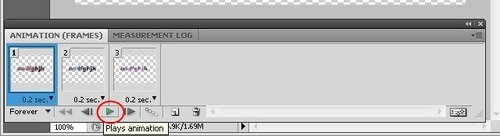
14. To save go FILE > SAVE FOR WEB AND DEVICES...

15. PRESTO!

Questions? feel free to ask, I don't bite! :)) yeah, I don't know what to post haha~
[original post from]
1. Create a simple text (what ever is it that you want). I suggest use a font that is bolder. (thick)
2. Collect different pictures for your word art. Allow me to use nebula pictures.
3. On the text layer, click CRTL + SELECT (mouse pointer)
4. Click layer 3 which is the picture, then press CTRL+C, then after press CTRL+V. A new layer will appear. REPEAT THE PROCESS AS MANY AS THE PICTURE YOU HAVE.
6. After doing does steps, delete the layers you used.
7. Go >> Window >> Animation.
in the lower part a box will appear.8. Click duplicates selected frame. A new layer will appear.
9. Set the frame time delay. (whatever you want) It indicates how long or short.
10. Below the frames you can see a 'ONCE' , click the drop down menu then list of loop counts will appear.
11. Go to layers the click the visibility button (the eye).
12. Repeat the process. (it depends on how many layers you have.)
13. Click the play animation button. To test if its working.
14. To save go FILE > SAVE FOR WEB AND DEVICES...
15. PRESTO!
Questions? feel free to ask, I don't bite! :)) yeah, I don't know what to post haha~
[original post from]